
Set up private iCloud sync in Antici
Set up private iCloud sync in Antici. Check Premium and Apple Account access on both iPhones, understand sync status, and troubleshoot missing moments.
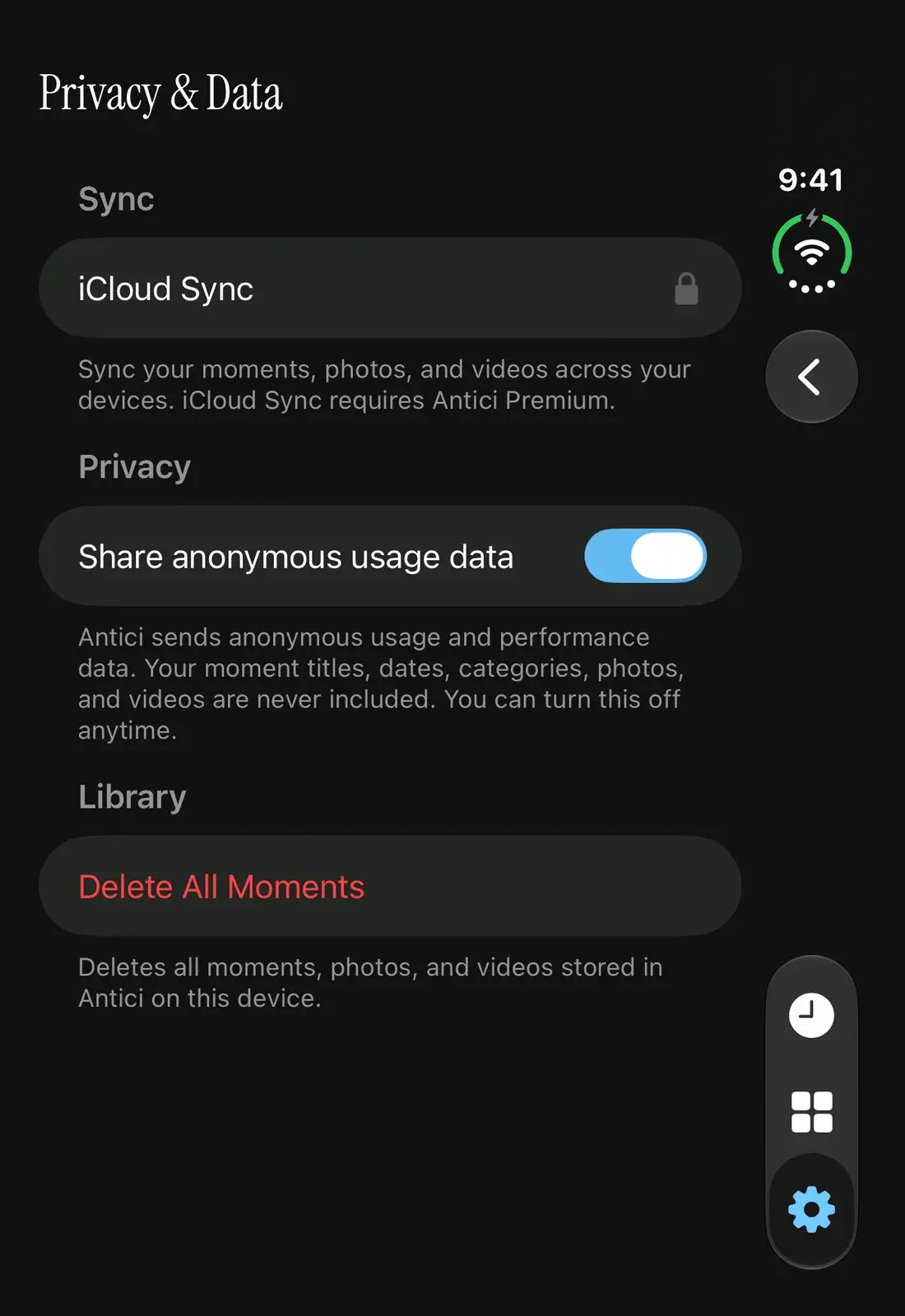
To sync Antici between your iPhones, use the same Apple Account for iCloud, verify Antici Premium on both phones, then open Antici Settings, Privacy & Data, and turn on iCloud Sync. Keep both phones online and allow time for the library to appear.
This guide is for your own compatible iPhones running iOS 26 or later. Your moments, categories, photos and videos use your private iCloud library. To send a countdown card to someone else, follow the sharing guide.
Check both iPhones before you start
Begin on the iPhone that already has your moments. Open its library and confirm that the cards you want to keep are there. Keep that library in place while setting up the other phone.
Check these requirements on both phones:
- Install or update Antici on a compatible iPhone with iOS 26 or later.
- Use the same Apple Account for iCloud. In iPhone Settings, tap your name, open iCloud, and check Antici's app access.
- Have Antici Premium verified in the app. iCloud Sync is a Premium feature, even though Antici is free to download.
- Use a working internet connection and check that iCloud has available storage.
If you already purchased Premium but the sync row is locked, tap the row to open Antici Premium, then tap Restore. Purchase restoration uses the Apple Account that made the purchase. Check that account separately from the account used for iCloud; each check serves a different purpose. Apple's purchase-restoration guidance explains that requirement.
Restore restores access to a purchase. To check whether your saved moments have arrived, compare the library on the other phone using the steps below.
Turn on iCloud Sync on each phone
The setting lives inside Privacy & Data. Sync is a section heading on that screen, rather than another screen to open.
- Open Antici Settings using the gear tab.
- Open Privacy & Data.
- Under Sync, find iCloud Sync. With verified Premium, this is a switch; a lock opens the Premium sheet.
- Leave iCloud Sync on. It is on by default, but check its actual state on this phone.
- Repeat these checks in Antici on the second iPhone, restoring Premium if needed.
Each phone has its own sync preference. Turning sync on for one does not set the other phone's preference. Both need the intended iCloud account, verified Premium and their own sync setting enabled.
Open Antici on both phones and allow time for iCloud. Delivery time depends on the connection and iCloud's processing. Antici uses automatic syncing, so check what actually appears in the library before recreating missing cards.
Confirm a known moment arrived
Choose one recognizable card, such as a saved vacation departure. On the second phone, open Moments and look for the same name, date and media. Clear the category and time filters if necessary, or use Search. The past-moments guide explains finding an earlier card.
When Premium and sync are active, Privacy & Data can show iCloud Account. On describes the account's availability. Other possible values include Sign in to iCloud, Restricted, Unavailable and Temporarily Unavailable.
Last Synced appears after Antici receives iCloud activity. That timestamp does not confirm that every change has uploaded or every photo or video has arrived. The useful check is the saved card itself: open it on the other phone and compare its details and media.
Antici syncs its saved media copies. Keep the original photos and videos if you want their original quality; the app uses a smaller synced photo and its compact video clip.
Set up the new phone's widget and notification permission separately. The widget guide explains choosing a saved moment, and the reminders guide covers alert settings and iPhone permission. A shared moment library does not mean every phone's widget choice or notification preferences have transferred.
Work through a missing-moment check
Start with the phone that still shows the library, then compare the same settings on the other one.
- If iCloud Sync is locked, check Premium and use Restore for an existing purchase. Return to Antici after restoration so it can verify access.
- If iCloud Account says Sign in to iCloud, check the intended account in iPhone Settings. For Restricted, Unavailable or Temporarily Unavailable, check account access, your connection and Apple's System Status, then return to Antici.
- If a card is missing, clear the Moments filters and search its name before saving a duplicate. Confirm the saved year and category on the original phone.
- If cards arrive but media is missing, check storage. iCloud storage and space on the iPhone are separate. Antici can show Some photos couldn’t be saved when the phone needs space to finish saving incoming photos.
- If Antici shows Couldn’t update iCloud Sync, use Try Again when you are ready. The alert explains that your moments are still here. Changing this setting applies within the app; it does not require a restart as a setup step.
Apple explains that full iCloud storage can stop other iCloud apps staying up to date in its storage guide. Check available capacity while keeping your existing Antici library intact.
An initial checking message or a missing Last Synced row is not enough to conclude the library is lost. Recheck Premium, the iCloud account and the switch on both phones, then compare the actual saved card. If the issue continues, contact Antici Support with your app version, account-status label and which phone still has the moments.
Understand switching sync off
Turning iCloud Sync off on one phone keeps its locally saved library and stops cloud syncing for that phone. It does not turn off the preference on your other phone. If Premium is no longer verified, Antici also continues locally with existing saved moments. You can continue creating unlimited moments and categories without Premium.
When you later enable sync with verified Premium, allow time and check the library on the other phone again. Last Synced may be absent until new incoming activity is recorded.
Sync also carries deletions. Deleting a moment can remove it from your other synced iPhones, and Delete All Moments can remove the library on devices synced with iCloud. These settings do not provide a separate recovery archive. Keep the existing library in place during troubleshooting.
If you are starting with Antici for the first time, use the App Store button below and follow the getting-started guide. You can create moments in the free app; private iCloud sync requires Antici Premium.
Give your next date a photo
Add a photo or short video to your date, keep the countdown on your Home Screen, and revisit the memory after it passes. No account needed.