· 5 min read
Make a photo or video countdown on iPhone
Make a photo or video countdown on iPhone with Antici. Add your date, review a silent five-second video, and keep the moment on your Home Screen with a widget.


A photo or video countdown on iPhone puts a date beside a memory you want to see again. In Antici, that might be a view of the place you are visiting, a favorite wedding photo, or a short clip from your last trip together.
Start with one upcoming date and a photo or video from your own library. Antici requires iOS 26 or later. Photo and video moments are included in the free app, which lets you keep up to five moments.
Videos play as short, silent loops inside Antici. Home Screen widgets and shared countdown cards show the video's still cover photo. Knowing that difference helps you choose media that looks good both in motion and at a glance.
1. Give the date a clear name
Open Moments in Antici and tap the plus button to add a new moment. Enter a name that tells you what is coming: “Flying to Santorini,” “Our wedding,” or “Birthday dinner.”
Set the Date and Time to the moment you want to reach. For a trip, use your departure time. For a celebration, use the time it begins. If you only need to check the number of days first, use the days-until calculator, then enter your chosen date in Antici.
A category is optional. Travel, Birthdays, or a category you create can make the moment easier to find later. Leave a one-time trip or wedding without a repeat; a separate anniversary can repeat yearly.
2. Choose a photo or review a video
Tap Choose from Photos to select an image or video from your library. If you want a new still photo, Take a photo opens the camera. To use a newly recorded video, record it first with your iPhone camera, then select it from Photos.
For a photo
Choose an image with one subject you can recognize easily: a destination, a person, or a detail that means something to you. The Adjust photo screen lets you drag to reposition and pinch to zoom. You can also use the Zoom slider. Tap Use photo when the crop feels right.
For a video
Choose the video and wait for Antici to prepare it. On Preview video, watch the silent loop and tap Use video to attach it to the moment. This review happens before you save, so you can cancel and pick another clip if its opening does not work well.
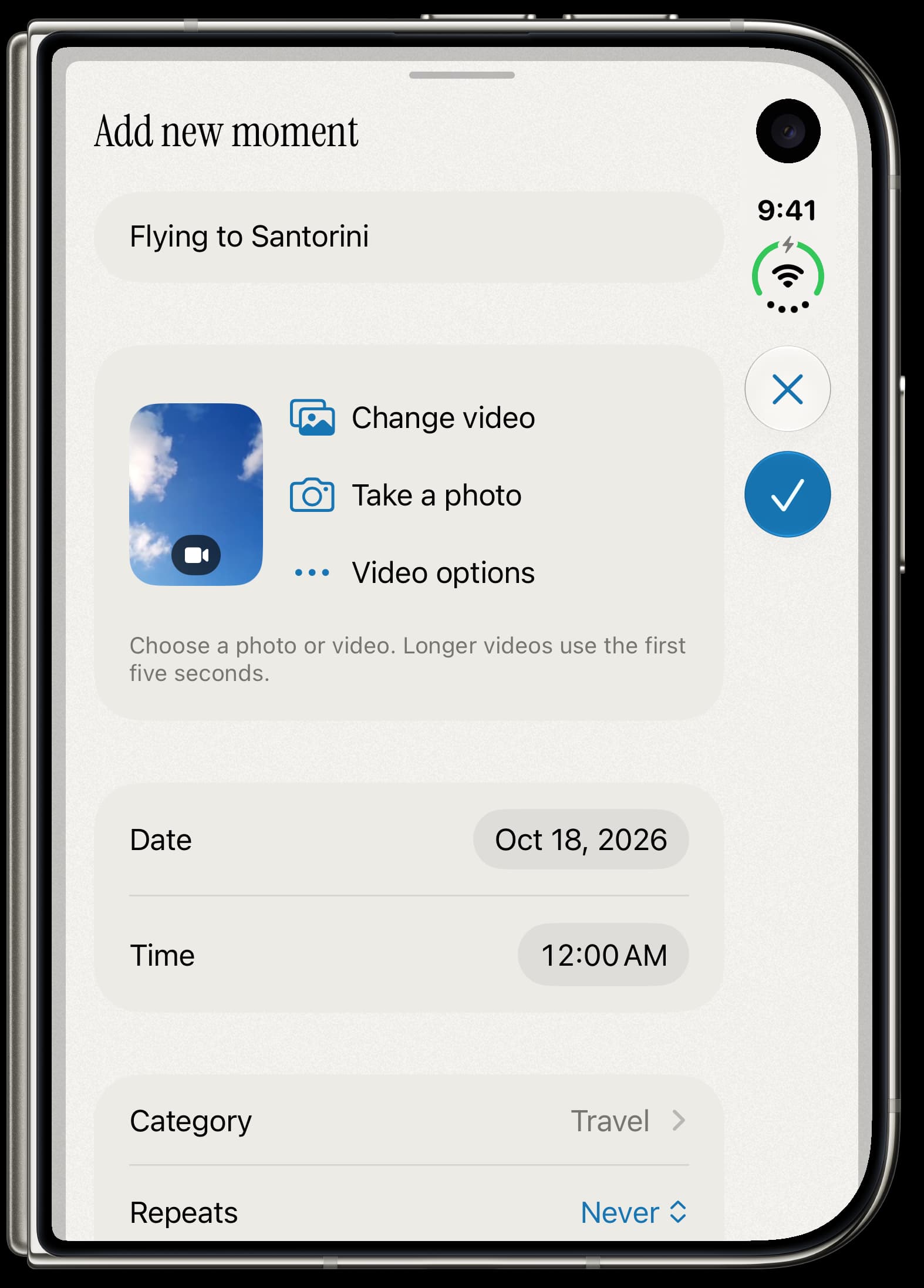
The photo or video is optional. You can save the name and date first, then add media later when you find the right image.
3. Make the first five seconds count
Antici keeps the first five seconds of a video, or the whole clip if it is shorter. The saved loop has no sound. Pick something that makes sense immediately: water moving by the shore, a brief wave to the camera, or a view from a place you are looking forward to visiting.
If the part you want starts later in a longer recording, trim a copy in Photos before choosing it in Antici. Open the video, tap Edit, move the ends of the frame viewer, and save it as a new clip to keep the original too. Apple's video-trimming instructions cover the steps.
The cover photo comes from the start of the prepared video. Choose an opening frame you would also enjoy as a still image, because that is what your widget and shared countdown card will use.
Motion plays when the moment is active on the Timeline or open in its detail view. The Moments library uses the cover photo. If Reduce Motion is enabled on your iPhone, the still image can remain visible instead of the loop.
4. Save it, then keep it in view
Once you have confirmed the photo or video and checked the name, date, and time, tap Save. Open the saved moment to see its countdown with the media you selected.
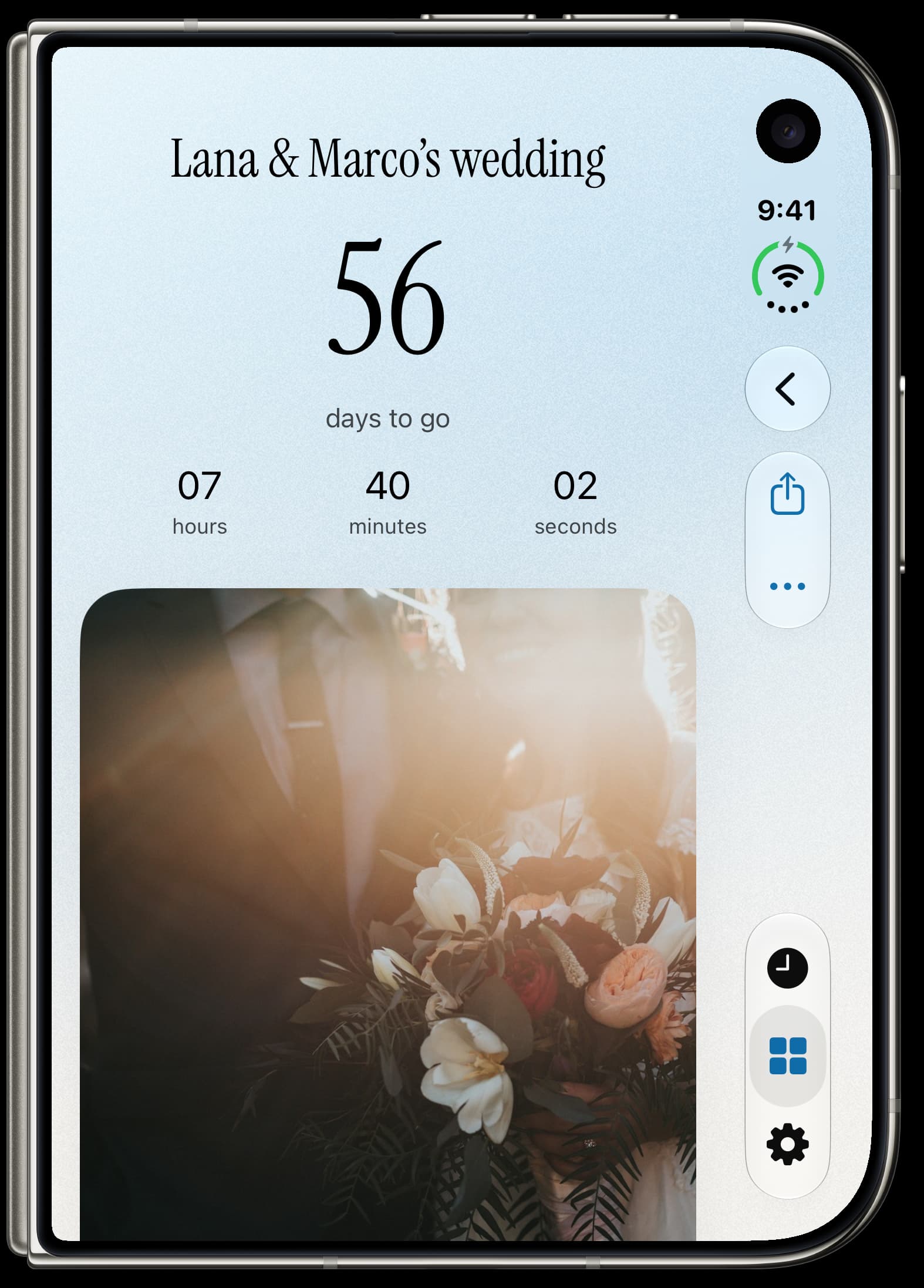
To keep the date visible outside the app, add Antici's small Home Screen widget and select your moment. The countdown widget guide walks through adding the widget and choosing the saved moment. Larger Home Screen widgets and Lock Screen widgets require Antici Premium.
If the date or image changes, open the moment, choose More, then Edit. Update it and tap Save. When editing a video moment, Video options includes Keep cover photo only if you would prefer the still image without motion.
5. Choose media for the moment you are in
A trip countdown can use a destination photo before departure, then a photo from the trip afterward. A wedding countdown can start with a favorite photo together. A birthday can have a new portrait each year. You can change the media as the date gets closer.
For a recurring moment, the completed occurrence keeps its photo or video in history. The next occurrence starts without media, leaving you room to choose something for that year. The birthday guide explains yearly repeats, and the wedding guide explains keeping the wedding and anniversary separate.
You can make photo or video countdowns, use reminders, and add a small Home Screen widget within the free app's five-moment limit. Antici Premium adds unlimited moments, larger and Lock Screen widgets, private iCloud sync, and shared cards without the Antici footer.
Pick one date you are looking forward to, choose a photo or short clip, and create your first moment in Antici.
Give your next date a photo.
Antici for iPhone requires iOS 26 or later. Start with up to five moments and a small Home Screen widget in the free app.