Share a countdown card or video in Antici
Share a countdown card or video in Antici. Learn what Share, Copy image and Share video send, how dates appear, and when Premium removes the card watermark.

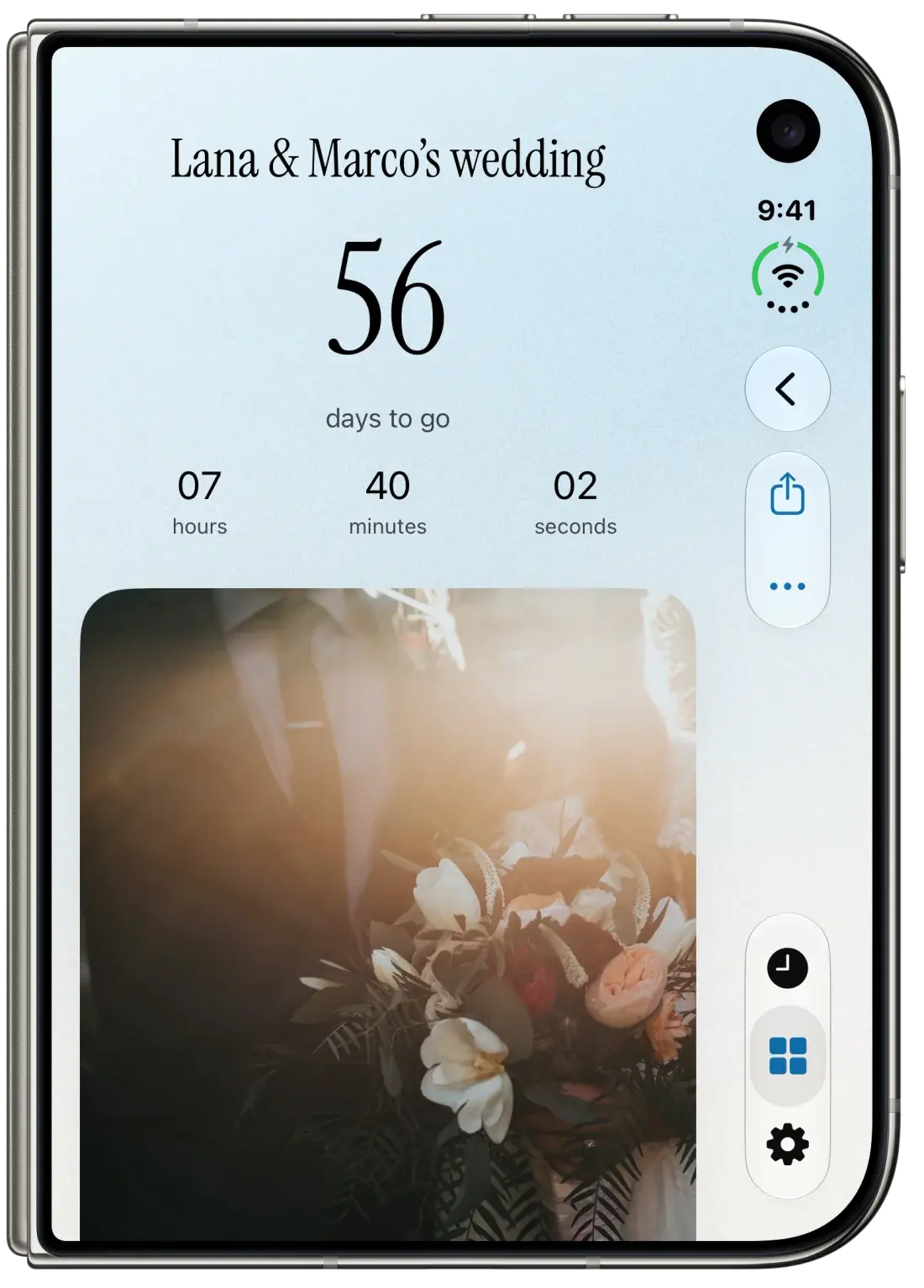
To share a countdown card in Antici, open a saved moment and tap Share. Use More, then Copy image if you want to paste the card yourself. For a moment with a saved video, More also offers Share video to send the clip.
These actions send files. The recipient's copy stays as it was when you sent it, even as your countdown continues in Antici. Choose a still card for the moment's artwork and name, or the saved clip when you want to send motion.
Sharing and copying cards are included in the free app on iPhone with iOS 26 or later. Antici Premium removes the watermark from shared cards.
Share a still countdown card
- Open your saved moment from Timeline or Moments. From Timeline, tap the displayed photo to open its detail view.
- Tap Share, the square with an upward arrow beside More.
- Choose a destination from the iPhone share sheet.
- Review its compose screen, add any details you want to include, and send when ready.
Share creates a PNG image with the moment's artwork and title. If the moment uses a video, this card uses its still cover photo. The running countdown and saved date are not printed into the image.
Antici supplies countdown and date text separately through the share sheet. A destination may use that text, use only part of it or take just the image. Apple's ShareLink documentation explains that support for the subject and message depends on the sharing activity.
Check what appears in the destination before sending. For a birthday dinner, for example, add the confirmed date, time and meeting place in your own message if they are needed. A photo and a moment name alone may not tell someone when to arrive.
Copy the card and paste it yourself
Copy image is useful when you already have a message or post open and want to add the card to it.
- Open the moment's detail view.
- Tap More, the ellipsis button, then Copy image.
- Wait for Antici to show Copied.
- Return to the destination and paste into a field that accepts images.
The clipboard receives the PNG card. It does not include the separate countdown or date message supplied by Share, so add that context yourself when needed. The card's artwork and watermark follow the same rules as the Share action.
Paste support varies by destination. If its text field accepts only text, try its attachment controls or return to Antici and choose Share. Review the resulting attachment before sending.
Send the saved video
For a video moment, open More and choose Share video. Select a destination that accepts video, check the attachment and finish sending there.
This sends the clip prepared by Antici as an MP4. It is up to five seconds long and has no audio. It is the saved clip, rather than the full original recording from Photos, and it has no countdown or card-title overlay.
Share video is separate from Share and Copy image. Those two actions use the still cover photo, even while the video plays inside Antici. The free/Premium card watermark rule applies to the PNG card; Share video sends the saved clip directly.
To choose or replace the clip first, follow the photo and video countdown guide. That guide covers preparing media and saving it to a moment.
Check the card before sending
The free card includes a small Antici app-icon watermark near the photo's top-right corner. Antici Premium removes that watermark. The recipient can view the PNG or MP4 in a compatible app; receiving the file does not create an editable moment in their Antici library.
Use a short, recognizable moment name. Long names can be shortened in the card's one-line title. If you need to change the name or media, open More, choose Edit, save your changes and share again. The getting-started guide explains editing a saved moment.
A shared file does not keep counting down, follow later edits or give its recipient access to your library. If the plan changes after sending, send an updated card or message. To keep your own saved countdown visible and updating on your iPhone, follow the widget guide.
Find a missing video or date
Share video appears only when the moment has a saved clip available on this iPhone. A photo-only moment has no clip to send. Choosing Keep cover photo only when editing a video moment also removes its video, leaving the still image for Share and Copy image.
If you expected motion, check the action you chose: Share creates the still card; More, then Share video sends the clip. If you expected a date on the image, add it in the destination's caption or message. Copy image transfers only the image, and Share destinations handle supporting text differently.
If Antici shows Couldn't copy, retry from the saved moment. If the destination cannot paste images, use Share and choose an available image-compatible destination. Contact Antici Support if copying continues to fail, including your Antici version and what happened.
Start with the moment you want to send, choose the card or clip, and review the attachment and date context before sending it.
Give your next date a photo.
Antici for iPhone requires iOS 26 or later. Start with up to five moments and a small Home Screen widget in the free app.