Find and revisit past moments in Antici
Find past moments in Antici with filters, Search and Timeline. Revisit saved photos, check elapsed time, and keep an original date separate from an anniversary.

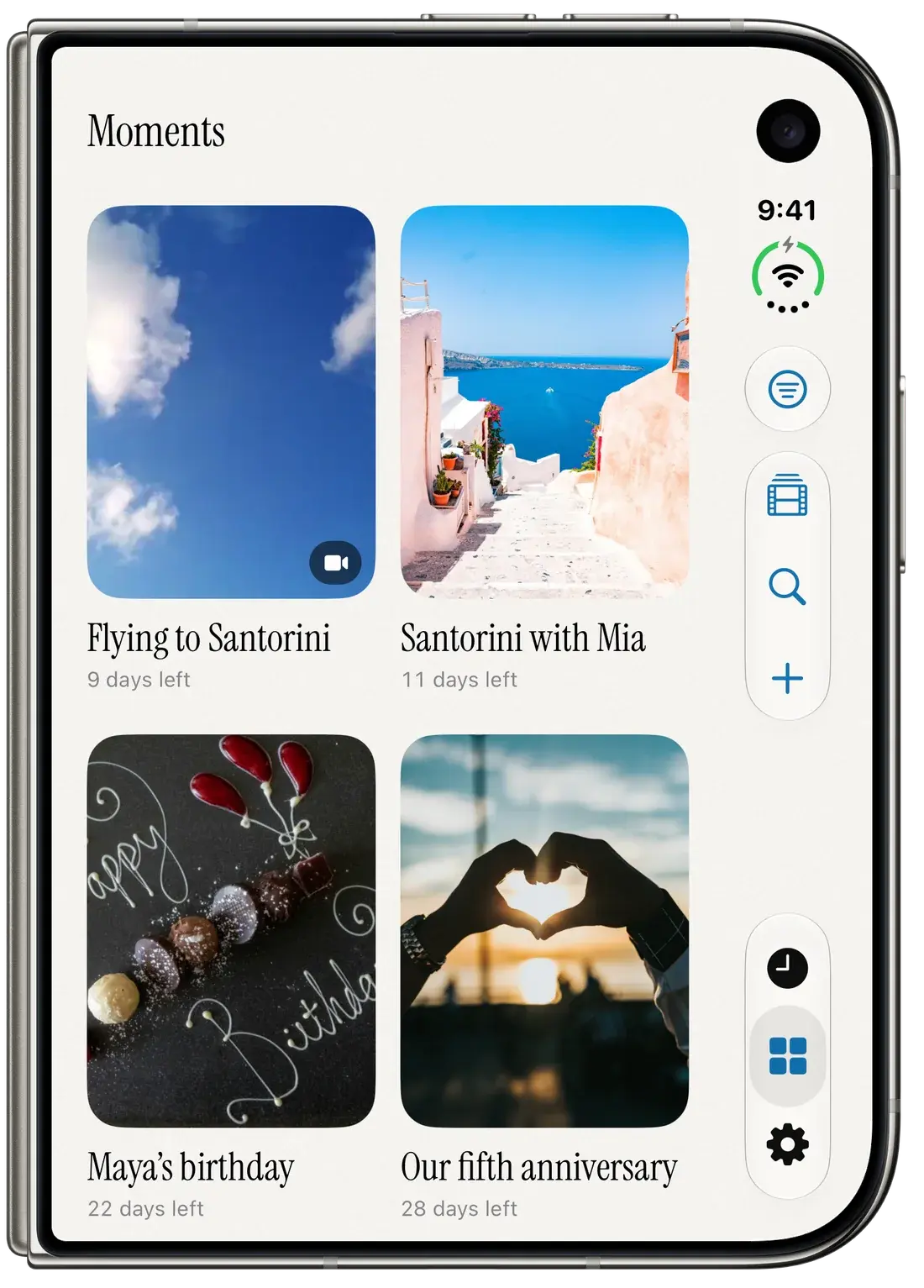
To find past moments in Antici, open Moments, tap Filter moments, choose Past, then open the saved card. A moment moves into this view after its saved date and time have passed, including an earlier time today.
Your library can hold the things you have already experienced as well as the dates ahead. A vacation departure, wedding day or completed birthday can remain a memory you return to. Finding and opening saved moments does not require Premium. Antici runs on iPhone with iOS 26 or later.
Find a saved card with the Past filter
Use the Moments tab when you want to see past cards together instead of moving through each date in Timeline.
- Open Moments, the grid tab.
- Tap Filter moments in the toolbar.
- Under Show, choose Past from the When choices.
- Open Categories and choose All categories, or select the group you want.
- Tap the card to open its detail.
Past cards appear with the most recent first. The category and time choices work together: Past with Travel selected shows only past moments in that category. It does not show birthdays saved elsewhere in your library.
If the grid says No matching moments, try All categories or Clear filters before saving another copy. Clear filters resets both choices to the full library. All moments shows upcoming cards nearest first, followed by past cards most recent first. The categories guide explains organizing and filtering your groups.
Search when you remember a name or category
Tap Search, the magnifying-glass button in Moments, and enter a few words from the title or category. The field is labeled Search moments. Results are separated into Upcoming and Past, so check the Past section for a memory.
Search looks across the saved library independently of the grid's selected filters. You can search for a birthday even while the grid is filtered to Travel. Words can match across the title and category, in any order; capitalization and accents do not need to match. Each word you enter must match, so shorten the search if a long phrase finds nothing.
For example, if you saved “Vacation departure” in Travel, searching “travel departure” can find it. A category name entered in Search is text to match. Use the Categories filter when you want only the moments assigned to one exact group.
Browse earlier moments in Timeline
Timeline puts saved moments in date order. Swipe right on the displayed photo or video to move to an earlier moment, or swipe left to move to a later one. You can also drag the curved date ruler. Tap the displayed image to open the focused moment.
To return to the next upcoming moment, double-tap the blue marker above the ruler. With VoiceOver, use Go to next moment. This returns to the nearest saved moment whose time has not passed; it does not jump to today's date. If your library has no upcoming moment, there is no future card for this action to select.
Timeline is useful when you remember roughly when something happened. The Past filter is quicker when you want the recent memories together, and Search is useful when you remember their names.
Keep an original date separate from an anniversary
A one-time moment keeps its saved date after it passes. Its relative label can show time ago, and opening its detail shows elapsed time rather than time left. The library may describe an older moment in months or years, so do not expect every card to display a full count of elapsed days.
For an original wedding day you want to keep as a memory, leave Repeats on Never. If you also want a countdown to your next anniversary, create a separate anniversary moment with the next date and choose Yearly if it should repeat. You then have the original memory and a future celebration with different jobs.
Setting the original moment itself to Yearly changes its continuing date as repeats advance. The repeating-moments guide explains the next occurrence, completed history and which card to edit. If you only need to calculate the days until a date, use the anniversary calculator.
Check a missing or changed memory
Start with the saved date and active filters. A moment set for later today is still upcoming. A wrong year can put a card much farther along Timeline than expected. Open the card, choose More, then Edit to check its name, Date and Time, and Save any correction.
Saving an edit to a completed repeating occurrence makes it independent of the original series. Edit the upcoming card when you mean to change future repeats.
Completed repeating occurrences also appear in Past and Search. Reopen Antici after a repeating date passes so it can refresh the continuing moment and its history. If several cycles passed while the app was closed, it preserves the most recent passed occurrence rather than creating an entry for every missed cycle. The repeat and history instructions explain why the next card starts without the completed occurrence's photo or video.
Past is a view of saved moments, not a deleted-items archive. Deleting a moment offers Undo for five seconds; deleting another finalizes the earlier pending deletion. Clearing filters cannot restore a deletion after that opportunity ends.
Already using Antici? Open Moments and try Past with All categories first. New to the app? Use the App Store button below, then follow the getting-started guide to save a date you want to remember.
Give your next date a photo.
Antici for iPhone requires iOS 26 or later. Start with up to five moments and a small Home Screen widget in the free app.