· 4 min read
Get started with Antici on iPhone
Create your first moment in Antici, check its date and time, find it in Timeline and Moments, and edit it when your plans change.

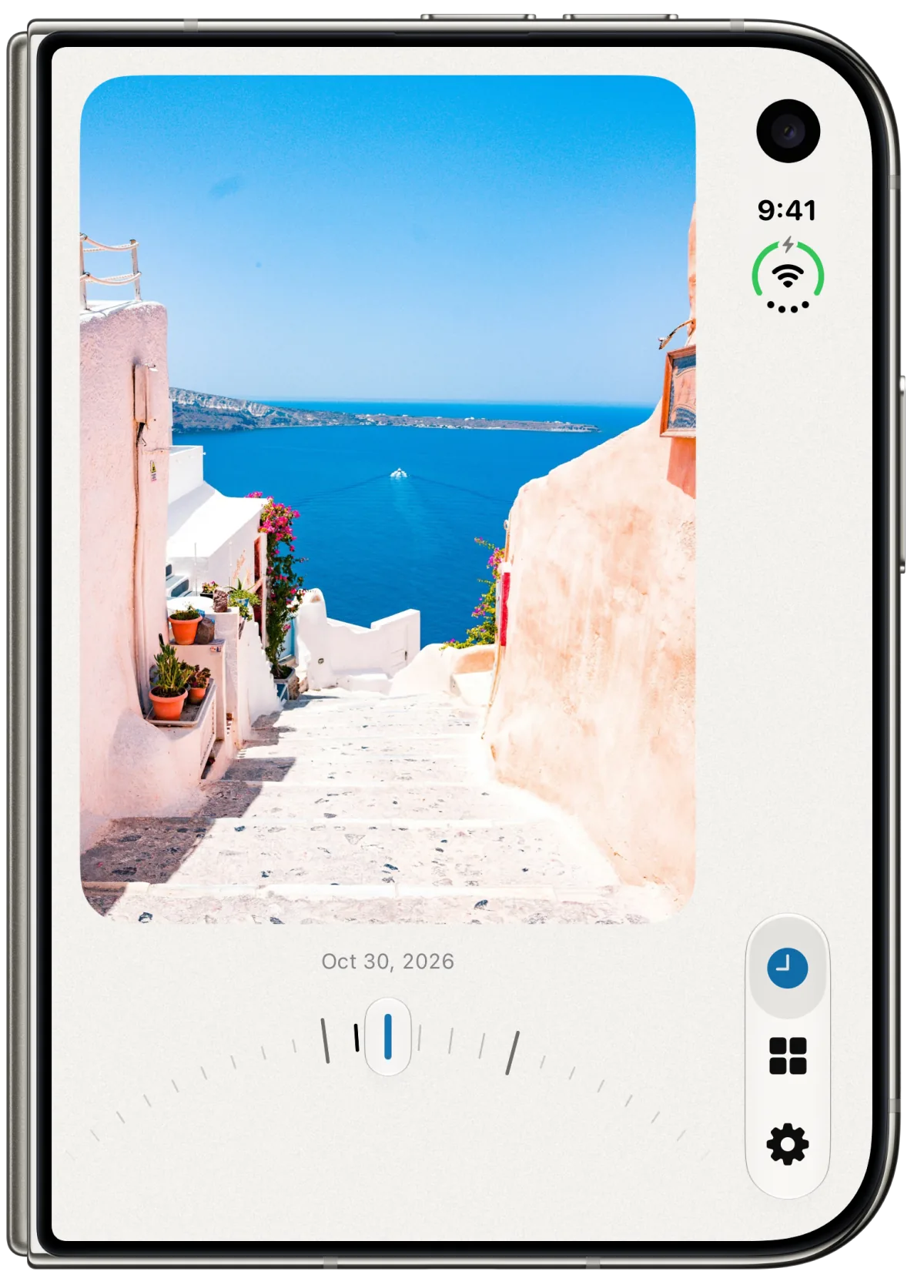
To make your first countdown in Antici, open Moments, tap the plus button, enter a name, choose the date and time, and save. A photo and category are optional. Your saved moment then appears in Timeline and your Moments library.
Antici runs on iPhone with iOS 26 or later. You can start free with up to five moments, ten categories, reminders and a small Home Screen widget. You do not need Premium to follow these steps.
Create your first moment
Choose one event with a date you already know: a vacation departure, a dinner reservation or a birthday. For this first example, use a one-time plan so the countdown has a clear destination.
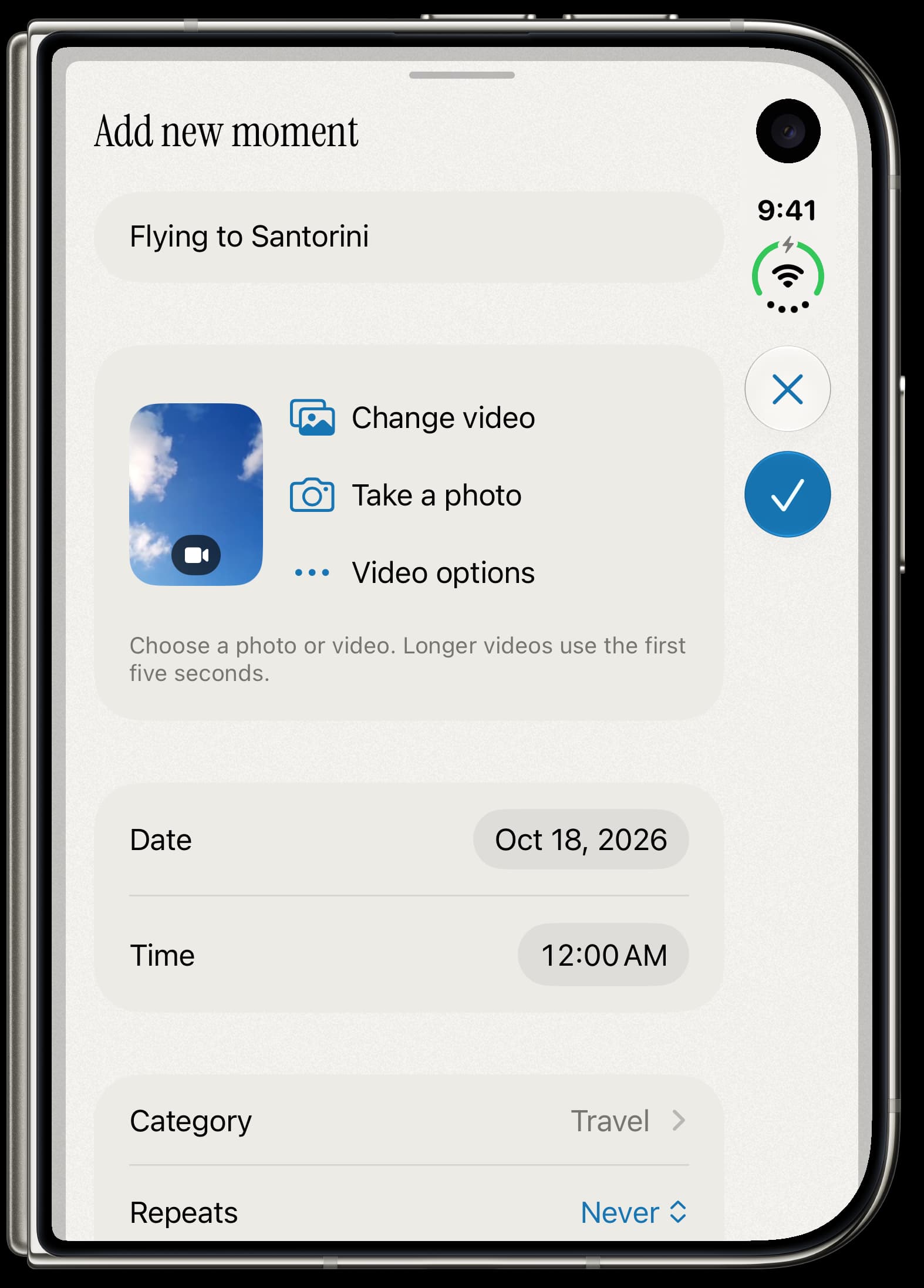
- On the welcome screen, choose Create a moment to open the editor. If you have already finished the welcome screen, open Moments, the grid tab, and tap the plus button labeled New moment.
- In Add new moment, enter a short name you will recognize, such as “Vacation departure.”
- Tap Date and choose the correct month, day and year. Tap Time and set when the plan begins.
- Leave Repeats on Never for this one-time event. Leave Category unchanged if you do not need a group yet.
- Tap Save, shown as a checkmark, when you are ready.
The editor starts with tomorrow's date at midnight. Check both Date and Time before saving, especially for a flight, appointment or evening plan. Antici counts down to the instant you enter; the title alone does not tell it when something happens.
Add a photo, category or reminder
You can save a moment with just its name and date. Add the other details when they help you recognize the plan.
- For media, tap Choose from Photos to pick a photo or video. Take a photo opens the still camera. Follow the photo and video guide for cropping, video review and replacing media later.
- For a group, tap Category and choose a name such as Travel. The categories guide explains how to create a group and browse only its moments.
- Turn on Remind me if you want notifications for this moment. If iPhone asks for notification permission while saving, allow it to receive alerts. You can still save a moment if you decline; its reminders will be off.
In Antici Settings, the gear tab, Alert Timing controls When it happens and the advance times under Before. These timing choices are shared across moments with reminders enabled. If an alert does not arrive, check Antici's notification permission in iPhone Settings as well as the moment's Remind me switch.
Find your saved moment
After a new save, Antici focuses that moment in Timeline, the clock tab. The displayed photo or video and curved date ruler help you move through your moments. Swipe the image left or right, or drag the ruler, to browse. Tap the displayed image to open the moment's detail and countdown.
Moments, the grid tab, is the place to browse your saved library. Open Filter moments if you want All moments, Upcoming or Past, or a particular category. If something seems missing, clear the filters before creating another copy.
For example, your vacation departure can stay in Travel while a dinner remains Uncategorized. Both still appear in the full library; a category filter narrows the view without changing either date.
Change a date or name
Plans can move after you save them. Edit the existing moment to keep its details together.
- Open the moment from Timeline or Moments.
- Tap More, the ellipsis button, and choose Edit.
- Change the name, Date, Time or another detail in Edit moment.
- Tap Save.
Check the year as well as the month and day when moving a plan. If you meant to create an annual event, such as a birthday, use a date for its next occurrence and choose Yearly in Repeats. The birthday guide explains how that differs from a one-time party.
Keep the countdown on your Home Screen
Once you have saved a moment, you can select it in an Antici widget. The small Home Screen widget is included in the free app; larger Home Screen widgets and Lock Screen widgets require Premium.
Follow the widget setup guide to add the widget and choose its moment. Saving a moment in Antici is the first step; adding the widget happens through your iPhone's Home Screen controls.
You can return later to add a photo, organize categories or adjust reminders. One recognizable name and one accurate date are enough to begin.
Give your next date a photo.
Antici for iPhone requires iOS 26 or later. Start with up to five moments and a small Home Screen widget in the free app.