Antici is ready for iPhone Duo
Use Antici on iPhone Duo to count down to birthdays, trips and big days. See the app on both displays, save your first moment, and choose a Home Screen widget.

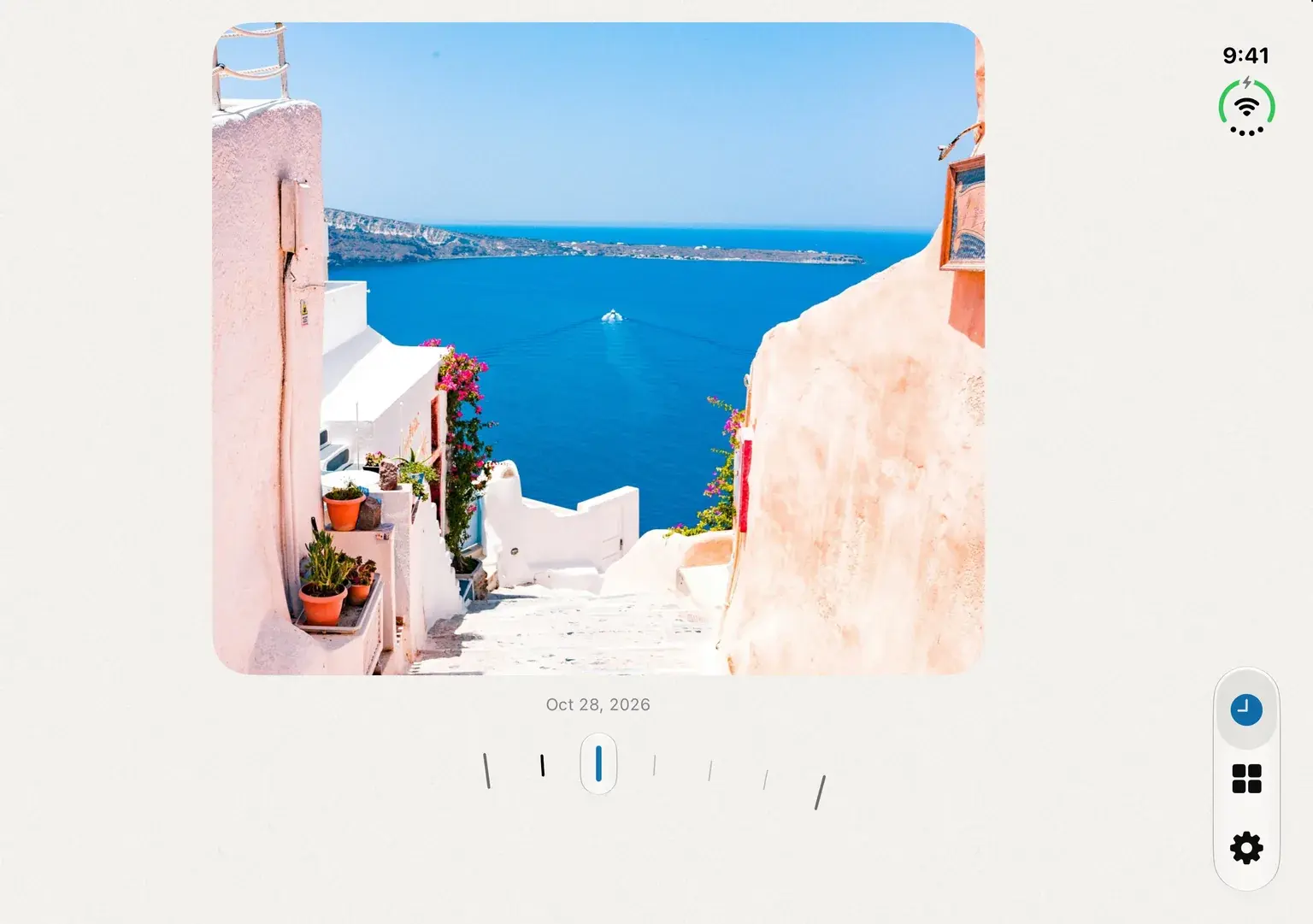
Antici is available for iPhone Duo. Keep a birthday, vacation departure or wedding date close with a photo or short video, browse your saved moments in Timeline, and open the larger display when you want more room to look around.
It is the same Antici iPhone app, with the same saved library and free features. The examples in this guide show Antici on the outer and inner displays, using approved captures from Apple's simulator.
Your next date on the outer display
The outer display gives you a compact view of the moment you are looking forward to. Timeline puts its photo or video above a curved date ruler, with the app's navigation alongside the content in the layout pictured below.
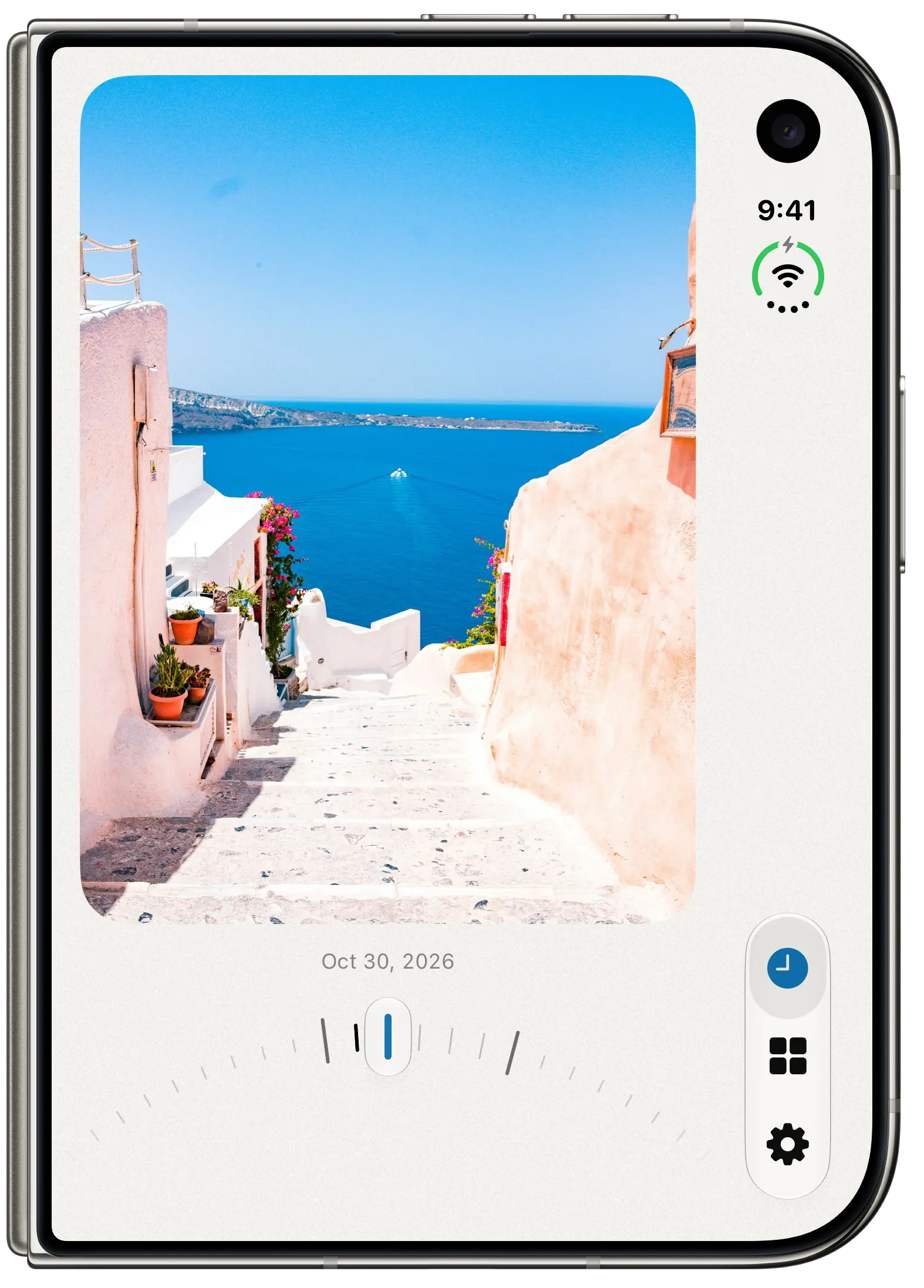
Use the clock button for Timeline, the grid for Moments and the gear for Settings. If you are used to tabs along the bottom of another iPhone, look for those familiar symbols at the side of the pictured Duo layout. The buttons keep those same jobs as the layout changes.
In Timeline, swipe the displayed image left or right, or drag the ruler, to move between your saved dates. Tap the image to open the moment's detail and countdown. For example, a vacation departure can have a destination photo, while a birthday uses a family portrait. Each card keeps its own saved date and time.
The getting-started guide walks through creating and finding your first moment. If you already use Antici, the clock, grid and gear still lead to Timeline, Moments and Settings.
Open Duo for more space
On the inner display, Antici has more room around the same personal content. The cover image above shows a real inner-display Timeline capture: a travel photo, its demo date and the curved ruler, with the app controls alongside it.
Open Moments when you want to browse several plans. Its grid adjusts to the available width and your text size. With enough width, it can show three columns of cards; a narrower layout uses fewer columns. Your preferred text size can also change how many cards fit together.
Use Filter moments to choose Upcoming, Past or a category. A Travel category can keep your departure and journey home together, while Birthdays holds dates that return every year. Clear a filter when you want the full library again. The categories guide covers creating and managing those groups.
Both layouts use the same saved moments. A wider view helps you browse them, while each photo, countdown and reminder still belongs to the date you entered.
Apple describes the device's inner and outer displays on its iPhone Duo page. The screenshots here show Antici's existing captured layouts; choose the view that suits what you want to do.
Save one plan you actually know the date of
A useful first countdown is a plan with a confirmed start: your vacation departure, a dinner reservation or the next birthday you want to remember.
- Open Moments and tap the plus button for a new moment.
- Enter a recognizable name, then check Date and Time, including the year.
- Choose a photo or video if you want one, and select a category if it helps organize the plan.
- Leave Repeats on Never for a one-time plan, then Save with the checkmark.
Use the actual departure time for a flight or road trip, rather than the holiday's calendar date. A dinner or celebration on another day can have a separate moment.
For a birthday or anniversary you want to follow again, choose Yearly instead. The repeating-moments guide explains the next occurrence, completed history and what happens to its photo. Repeating a moment and replaying a short video are separate choices.
Antici uses photos or silent videos of up to five seconds. The photo and video guide explains selecting media and the cover photo used by widgets and shared cards.
Keep it visible with a widget or reminder
After saving a moment, add an Antici Home Screen widget and select that moment in its widget settings. The small Home Screen widget is included in the free app. Follow the widget setup guide for the iPhone steps and the available sizes.
If you want an alert, turn on Remind me for the moment and choose the shared alert times in Antici Settings → Notifications. Your iPhone must also allow Antici notifications. The reminders guide covers those controls and missing-alert checks.
For a vacation, the combination can stay simple: one saved departure, a recognizable destination photo, a small widget and the advance reminder you need. Duo changes the room available to view the app; the date remains the center of the setup.
The same free app and Premium choices
Start free with up to five user-created moments, ten categories, photos and videos, repeats, reminders and a small Home Screen widget. There is no separate Duo edition to buy.
Antici Premium adds unlimited moments and categories, medium and large Home Screen widgets, Lock Screen widgets, private iCloud sync and watermark-free shared cards. The app's general requirement is iOS 26 or later; Apple's current iPhone Duo ships with iOS 27.
If you are moving from another iPhone and want your library to sync, private iCloud sync is a Premium feature. Check your iCloud account and Antici's sync setting rather than assuming a new installation already contains your moments. Antici Support explains the current free, Premium and sync options.
Download the current Antici app, save a date you care about, and explore it on the display you prefer.
Give your next date a photo.
Antici for iPhone requires iOS 26 or later. Start with up to five moments and a small Home Screen widget in the free app.