· 5 min read
Organize moments with categories in Antici
Create categories in Antici, group and filter your moments, and change names or icons. Learn what happens when you merge or remove a category.

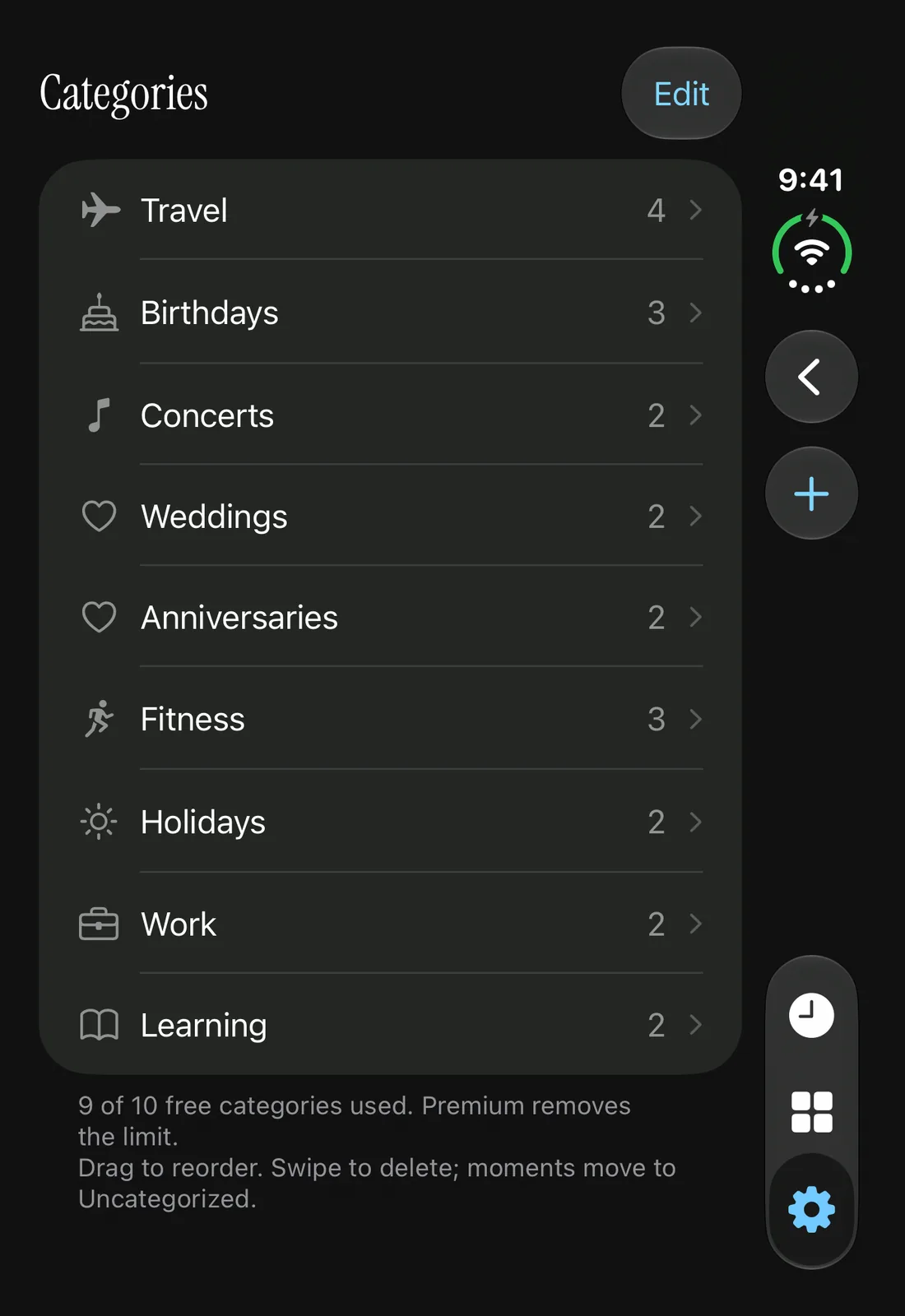
Categories group related moments under names such as Travel, Birthdays or Work. Choose a category while creating or editing a moment, then use the category filter in Moments to see that group. Manage the names and icons from Settings → Categories.
Each moment belongs to one category at a time. If you leave it without a named group, Antici uses Uncategorized. Grouping two plans does not combine their dates or countdowns: a vacation departure and a dinner can sit in Travel while keeping their own details.
If you have not saved a moment yet, start with the first-moment guide. Categories are optional, so you can organize your library later.
Choose a category for a moment
- Create a moment from the plus button in Moments, or open a saved moment and choose More → Edit.
- Tap the Category row in the moment editor.
- Choose an existing category, or Uncategorized if you want to remove the named grouping.
- Tap Save in the moment editor to keep the change.
For example, give “Vacation departure” and “Weekend away” the Travel category. Their countdowns still point to different dates. A category is a way to find them together, rather than a shared schedule.
To make a category during this flow, tap New category, enter a name, then Create. Finish by saving the moment. In the moment editor, the new category is part of your draft until that save; discarding the moment does not save the new group separately.
Create a category before adding moments
You can also prepare an empty group from Settings. This route saves the category on its own.
- Open Settings, the gear tab, then Categories.
- Tap the plus button, labeled New category.
- Enter a short name, such as Travel or Birthdays.
- Tap Create.
The new group is now available in the Category picker when you create or edit a moment. Creating it does not create an event or countdown.
Use a name that will still make sense after the current plan passes. Travel can hold several trips over time; “November vacation departure” is usually more useful as a moment's name. Antici treats Travel and travel as the same category name, and ignores spaces at the beginning and end.
Show only one category
Open Moments, then tap the filter icon labeled Filter moments. Under Categories, choose the group you want to browse.
The time filter works alongside the category filter. Choose Upcoming to see future plans in that group, Past for its completed dates, or All moments to include both. If you see No matching moments, check both selections. Clear filters returns the library to all categories and all moments.
Use this category filter when you want an exact group. Search is useful when you remember part of a name: it checks both moment titles and category text. A search for “travel” can therefore also find a moment with that word in its title. It is not the same as selecting the Travel category.
Move a moment to another group
Open the moment, choose More → Edit, tap Category, select the destination and save. You are changing that moment's category; the other moments in either group keep their own dates and media.
Choose Uncategorized if you want the moment to remain saved without a named group. If you are moving several moments, edit each one that needs the change.
Rename a category or change its icon
Go to Settings → Categories and tap the category's row. Edit category lets you change the name or choose an icon. Tap Save when finished. For example, you can give Travel the airplane icon to make the group easier to recognize.
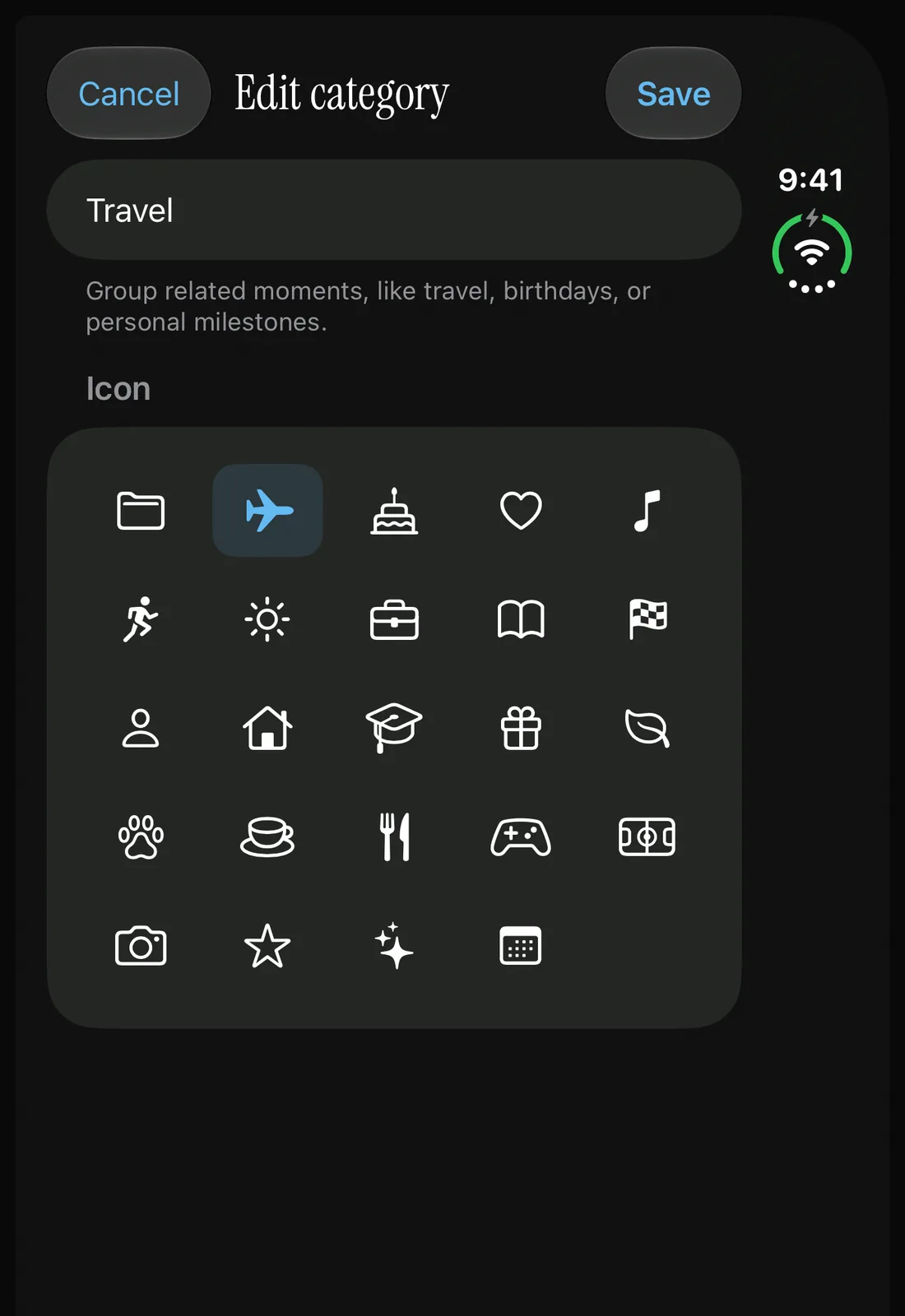
To change the list order, return to Categories, tap Edit and drag the rows into the order you prefer. This arranges your categories; it does not change the dates saved inside them.
Merge or remove a category
If you rename a category to the name of another existing category, Antici offers Merge. Confirming moves its moments into the existing group and removes the old group. Read the confirmation before continuing so you choose the intended destination.
For example, if you have Trips and Travel, you can rename Trips to Travel and confirm Merge. The moments are then grouped under Travel, with their own dates and media intact.
To remove a category without choosing another named destination, open Settings → Categories and swipe its row to delete. Its moments move to Uncategorized. Deleting a category removes the grouping; it does not delete those moments or their photos.
How many categories are free?
The free app includes up to ten named categories and five user-created moments. Uncategorized is the fallback group and does not use one of the ten category slots. You can still select an existing category when you have reached the category limit. Premium removes the moment and category limits.
You do not need a category for every moment. Start with a few groups that help you find your plans, and keep individual names specific. For media and display, continue with adding a photo or video or choosing a moment for your widget.
Give your next date a photo.
Antici for iPhone requires iOS 26 or later. Start with up to five moments and a small Home Screen widget in the free app.