Repeat moments in Antici and keep their history
Set daily, weekly, monthly or yearly repeats in Antici. Learn when the next date updates, how completed history keeps photos, and how to stop repeating.

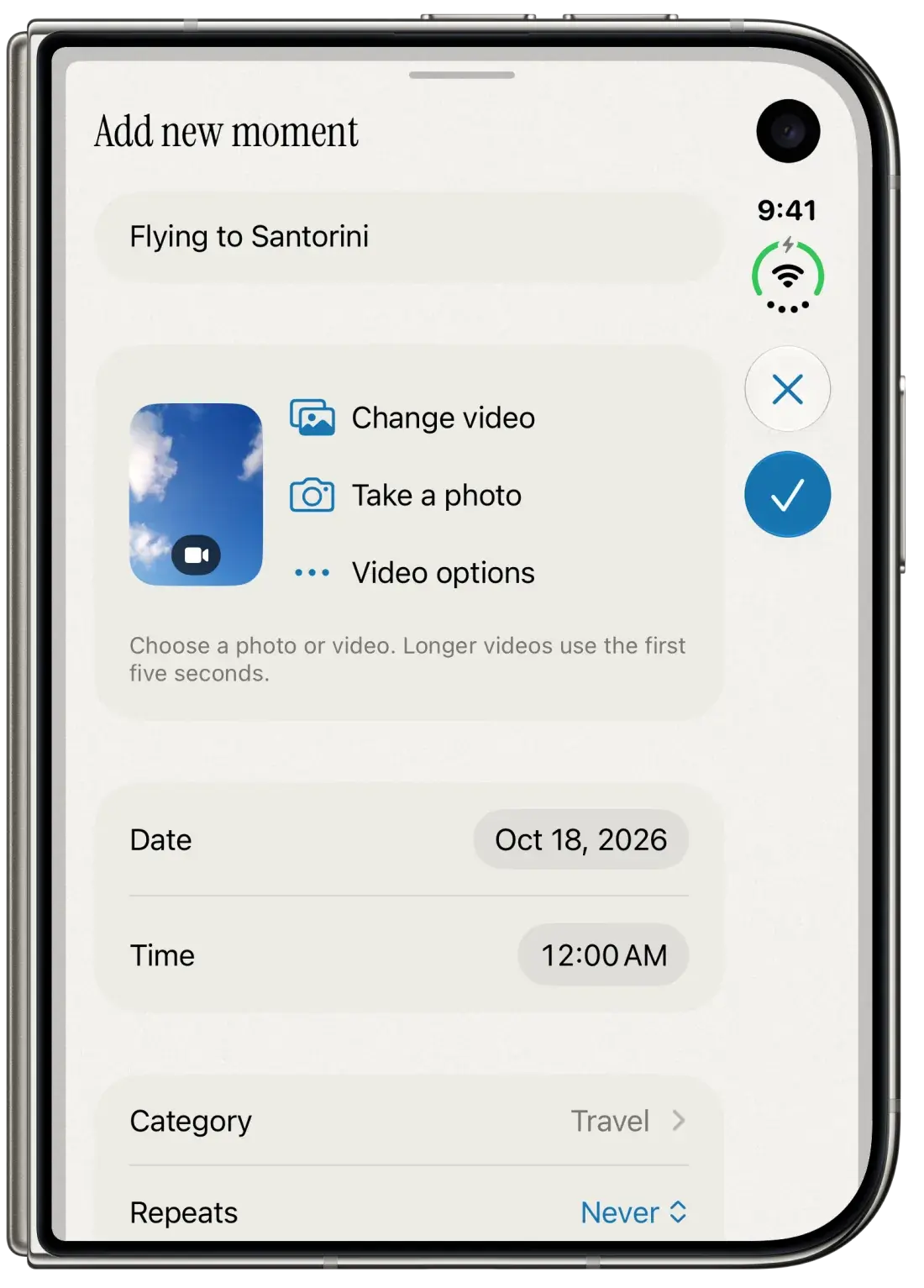
To make a moment repeat in Antici, open it, tap More → Edit, choose Daily, Weekly, Monthly or Yearly under Repeats, and Save. After the date passes, reopen Antici to refresh the next occurrence and its reminder schedule.
A repeating moment has two useful parts: the next date to look forward to and completed occurrences you can revisit. The completed occurrence keeps its photo or video; the next one starts without that media. Repeats are included in the free app on iPhone with iOS 26 or later.
Choose the repeat that matches your plan
For a new moment, tap the plus button, enter a name, and check Date and Time before choosing Repeats. For an existing one, open its card from Timeline or Moments, then choose More, the ellipsis button, and Edit.
- Set Date to the next occurrence you intend to track, including its year.
- Set Time to the time you want the countdown to reach. Midnight means the start of that date.
- Open Repeats and choose the interval you need.
- Tap Save, shown as a checkmark.
The menu offers five choices:
- Never keeps a single date, such as a wedding ceremony or a specific vacation departure.
- Daily moves the moment forward by a calendar day after its date passes.
- Weekly moves it forward by a calendar week, useful for a regular Friday dinner.
- Monthly moves it forward by a calendar month. Review the next date for plans near the end of a month.
- Yearly moves it forward by a calendar year, useful for birthdays and anniversaries.
The editor offers these intervals rather than a custom schedule builder. For a birthday and a party on different dates, save the birthday with Yearly and the particular party with Never. For a wedding and future anniversaries, keep the original wedding as a one-time memory and create a separate anniversary moment.
Choose a name that will still make sense next time. Repeats moves the date; it does not update an age or anniversary number in the title. Our anniversary needs less yearly editing than Our fifth anniversary. The birthday guide covers birthday-specific setup, and the anniversary calculator can check the days until a date you choose.
What happens after the date passes
When you next open Antici or return to it, the app advances a due repeating moment to its next future occurrence. It preserves the most recent passed occurrence as a separate past moment and refreshes the upcoming reminder schedule.
For example, save a birthday for November 10 at 6:00 p.m. with Yearly selected. After that saved time passes, reopen Antici: the continuing birthday moves to the next year, while the completed November 10 occurrence remains in your library. You do not need to create the same birthday again.
If you leave the app closed across several repeat cycles, Antici catches up to the next future date and preserves the most recent passed occurrence. It does not fill in a separate history entry for every missed daily, weekly or monthly date. Treat this as a countdown with saved memories rather than a complete attendance or activity log.
To revisit completed occurrences, open Moments, tap Filter moments and choose Past. If the moment is hidden by a category filter, choose All categories or the category you used. There is no separate History tab.
The free app includes up to five user-created moments. Generated past occurrences from a repeating moment do not use another creation slot; the continuing moment still uses its original slot.
Keep the memory and choose the next photo
When Antici advances a repeating moment, its completed occurrence keeps its photo or video. The next occurrence starts without either, so the next celebration can have its own image. A blank next card does not mean the previous memory was deleted.
Open the completed occurrence in Moments → Past to see its saved media. To personalize the upcoming one, open that upcoming card, choose More → Edit, add a photo or video, and Save.
If an earlier linked occurrence has a usable photo, the empty upcoming moment's editor can offer Use previous photo. Tap it and Save to reuse that still image. This choice does not restore a video clip: a previous video's cover can be reused as a photo, while a video must be selected again. If the option is absent, choose media from Photos instead.
The photo and video guide explains choosing and replacing media. For a countdown you want to keep visible, the widget guide covers selecting its moment and the available widget sizes.
Change or stop the upcoming moment
To change future repeats, edit the upcoming continuing moment. Check its Date, Time and Repeats, then Save. To stop repeating while keeping the saved moment, choose Never. That leaves its current saved date and existing past history in place.
Editing a completed occurrence is different. Saving an edit makes that past occurrence independent of its former repeating moment. A correction to its name, date or photo does not change the next upcoming occurrence or the other saved memories.
If you set that past occurrence to Yearly, it becomes a separate repeating moment. It does not reconnect to the original one, and you can end up with two upcoming countdowns. Use the upcoming card when your intention is simply to adjust the existing series.
Check unusual dates and reminders separately
Repeats follows calendar dates rather than a fixed number of hours or days. For a month-end plan or February 29 birthday, check the displayed next Date and Time and adjust them to the day you actually intend to celebrate. Monthly is not a dedicated last-day-of-the-month rule. Check again if you change your iPhone's calendar or time-zone settings.
Repeats and Remind me do different jobs. Daily repeats the event date; it does not send a daily countdown message until one fixed birthday or trip. Turn on Remind me for alerts, then choose the shared alert times in Antici Settings → Notifications. The reminders guide explains permission, timing and missing-alert checks.
Reopen Antici after an occurrence passes so it can update the saved next date, history and future notification schedule. A widget can display the next recurring date before that library refresh; it is not proof that the next notification batch has been prepared. Already-scheduled alerts can be delivered while the app is closed, but repeating the moment is not a promise of an unlimited background reminder schedule.
Start with one birthday, anniversary or regular plan. Save its next date, choose its repeat, and revisit the completed moment after it passes. If you have not saved a moment yet, use the getting-started guide first.
Give your next date a photo.
Antici for iPhone requires iOS 26 or later. Start with up to five moments and a small Home Screen widget in the free app.