· 5 min read
Retirement countdown on iPhone: save your last workday
Set up a retirement countdown on iPhone with Antici. Save your last workday, choose a photo and widget, and understand calendar days versus working days.


To keep a retirement countdown on iPhone, save your confirmed last workday as a one-time moment in Antici, add a meaningful photo, and select it in a Home Screen widget. Choose the date and time you want to reach: the end of your final shift and your first morning off are different targets.
Antici requires iOS 26 or later. The free app includes up to five moments and a small Home Screen widget. If you only want today's calendar-day total, use the days until retirement calculator. The steps below are for keeping that personal milestone on your phone after you close the calculator.
Choose the moment that means retirement to you
Start with one clear title and a date you have confirmed. “Last working day” is easier to interpret than “Retirement” if your farewell, final shift and first trip happen on different days.
For an illustrative plan, imagine a final shift ending on Friday, March 26, 2027, at 5:00 p.m. Save “Last working day” for that date and time. If the first Monday without work is the milestone you care about, “First Monday off” could instead point to Monday, March 29, at your chosen morning time. Replace these example dates with your own arrangements.
A farewell dinner may be another date altogether. Give it its own moment only if you want to track it separately. One retirement countdown does not need to become a list of every plan around it, and any extra moments use your remaining free slots.
The date comes from your plans. Antici does not determine your retirement eligibility, employer's final working date or benefits payment date.
Save a one-time retirement countdown
- Open Antici and tap the plus button to add a moment.
- Enter a title such as “Last working day.” Set Date to the confirmed month, day and year, then set Time to the end of your shift or another instant you have chosen.
- Add an optional photo that makes the milestone feel personal: a place you hope to visit, a hobby you want more time for, or people you look forward to seeing.
- Choose a category if it helps you organize your dates. “Milestones” is one name you could create yourself.
- Leave Repeats on Never. This keeps the countdown attached to the original occasion after its date passes.
- Turn on Remind me if you want notifications, allow them when asked, and save the moment.
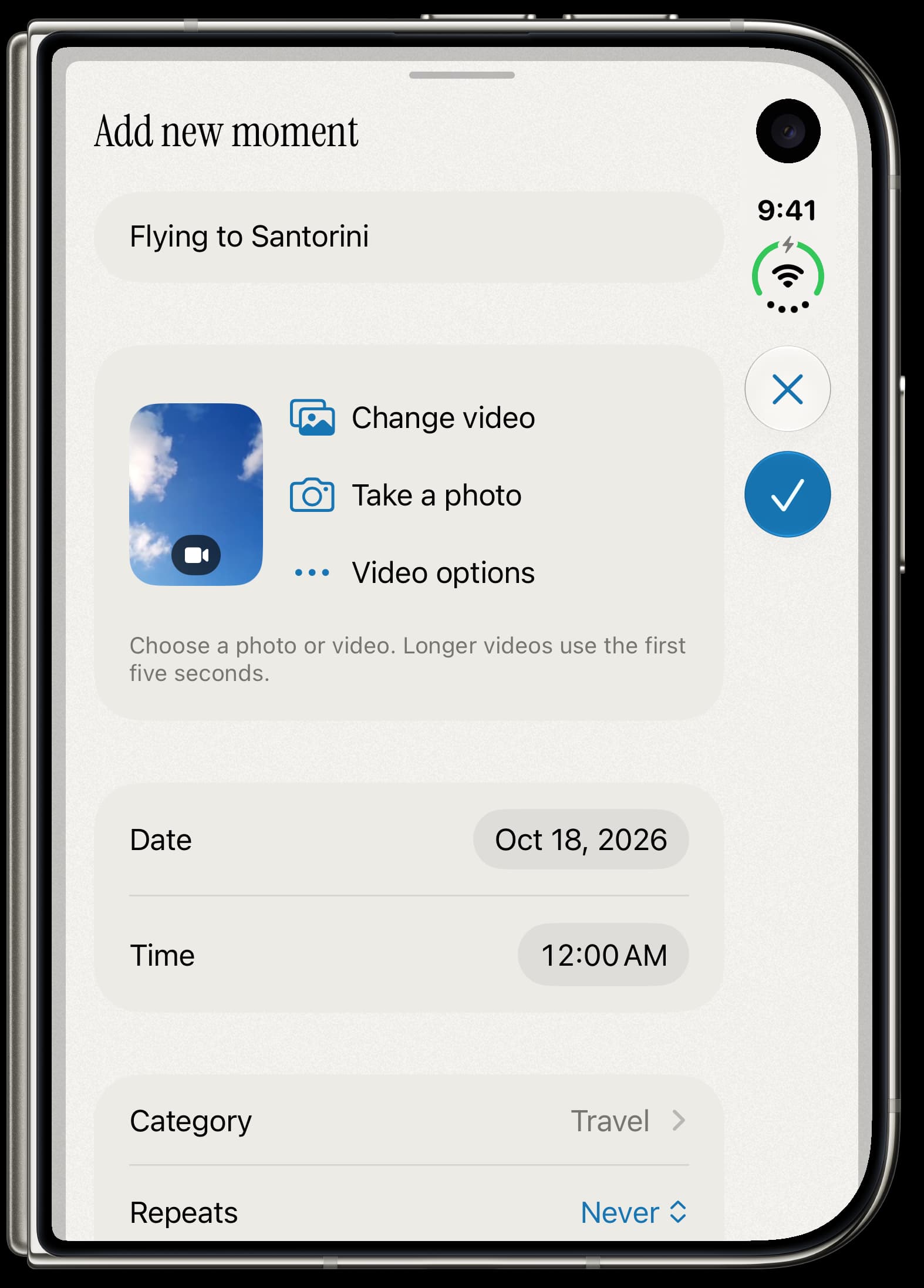
Open the saved moment and check the title, year and time together. A countdown to 12:00 a.m. reaches the start of that day; it will not wait until you finish work. If you mean the end of a 5:00 p.m. shift, enter 5:00 p.m.
A photo is optional. You can also use a short silent video; the widget uses its still cover. The photo and video countdown guide covers choosing and preparing media without changing the date you saved.
Read calendar days and time remaining correctly
Calendar days, full 24-hour periods and working days answer different questions. The website calculator counts calendar dates, including weekends and holidays. Antici's Days widget also counts calendar-day boundaries. The live timer inside an open moment shows the duration to your saved time, split into days, hours, minutes and seconds.
For example, from Thursday at 3:00 p.m. to Friday at 5:00 p.m., with no clock change in between, there are 26 hours left. The live timer can show one day and two hours, while a calendar-day count says one day. Around daylight saving time, a calendar day can also differ from a 24-hour period. Check the saved date and time before treating a different day count as a changed plan.
Neither Antici nor the retirement calculator subtracts weekends, public holidays, vacation days or part-time shifts. If you want “working days left,” use your actual work schedule to determine that separately. Keep this countdown focused on the confirmed date you are looking forward to.
Put the date on your Home Screen
Add Antici's small Home Screen widget, then touch and hold it, choose Edit Widget and select the retirement moment you saved. In the widget's style options, choose Days for a calendar-day count, or Photo if the image is what you want to see at a glance.
The small widget is included in the free app. Medium and large Home Screen layouts and Lock Screen widgets require Antici Premium. Follow the countdown widget setup guide for placement and selection; Apple's widget instructions explain the iPhone controls.
For a useful advance reminder, open Antici Settings, then Notifications. Under Before, choose from 15 minutes, 1 hour, 1 day and 1 week. These choices apply across moments with Remind me enabled; they are not a separate schedule for each event. A week-before alert could prompt you to review your own final-week arrangements. It is an advance alert, rather than a daily message of the number of days left.
Update the plan and keep the original date
If your last workday moves, open that moment, choose More, then Edit, and change its date and time. Check it again after saving. Keep any farewell gathering or first trip on its own confirmed date; editing retirement does not move those other moments.
Leave the retirement moment on Never after the date arrives. It stays as a past moment, and opening it shows time since that occasion. Switching it to Yearly would turn the target into a repeating anniversary rather than preserve the same one-time countdown.
When you have a confirmed departure for your first trip afterward, the trip countdown guide can help you save that next plan. Start with the one retirement date that matters to you now, check its time, and give it a photo you will enjoy seeing on your Home Screen.
Give your next date a photo.
Antici for iPhone requires iOS 26 or later. Start with up to five moments and a small Home Screen widget in the free app.